How to Access your Online Reservation Account
On October 1, 2026, Alaska State Parks transitions to a new reservation system facilitated by the company TylerTech, called the Alaska State Parks Outdoor Recreation Reservation System. We'll just call it the 'Reservation System'.
If you had an account in our legacy system from Aspira (Reserve America), your account has been moved to the new system and all existing reservations have been moved to the new system as well. You'll only need to perform the following steps the very first time you access the new system. Once you complete the following steps, you can log in normally.
Here is what you do:
Step 1: Go to the following website for the new Reservation System: reservealaskastateparks.com PLEASE NOTE: THIS LINK WILL NOT WORK UNTIL OCTOBER 1, 2026 at 5:00AM Alaska Time.
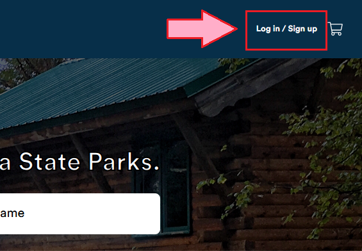
Step 2: On the Reservation System's homepage, you'll look to the top-right corner to find and click on, "Log in/Sign up".
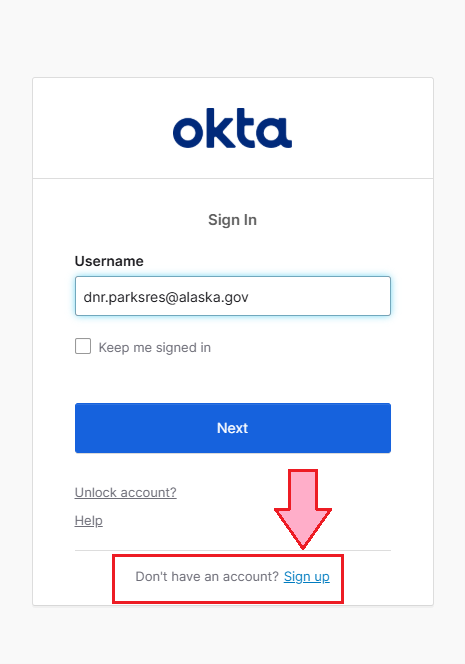
Step 3: At the sign-in page, ignore the username prompt and find the, "Don't have an account? Sign up," link at the bottom of the section and click, "Sign up."
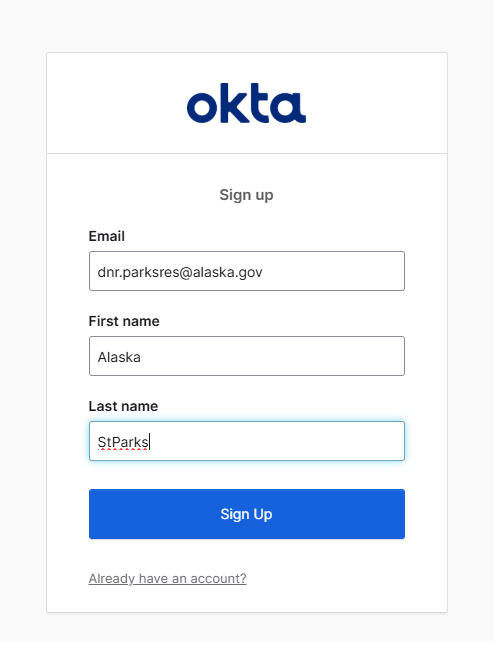
Step 4: On the Sign Up page, enter your Email address and name as prompted and click, "Sign Up." You MUST use the same e-mail address you used for your Reserve America account in order to access any existing and past reservations in the new Reservation System.
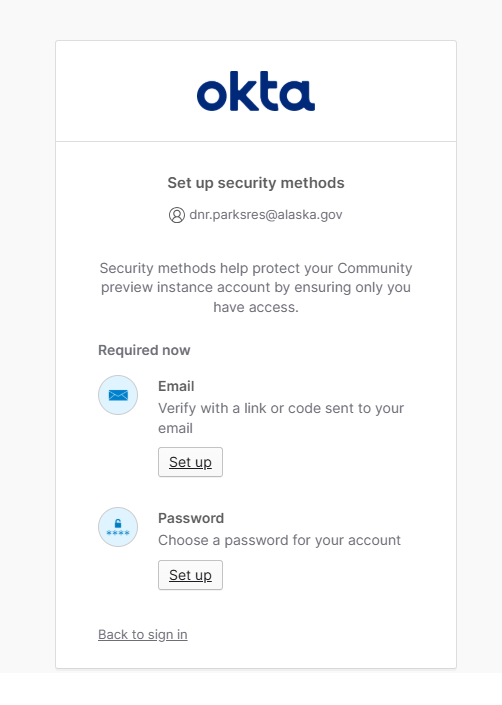
Step 5: You will then be prompted to verify your email and choose a password. Click the, "Set Up," under the "Email" section. *NOTE: It may not prompt you to verify your e-mail. If it doesn't, just move on to setting your password.
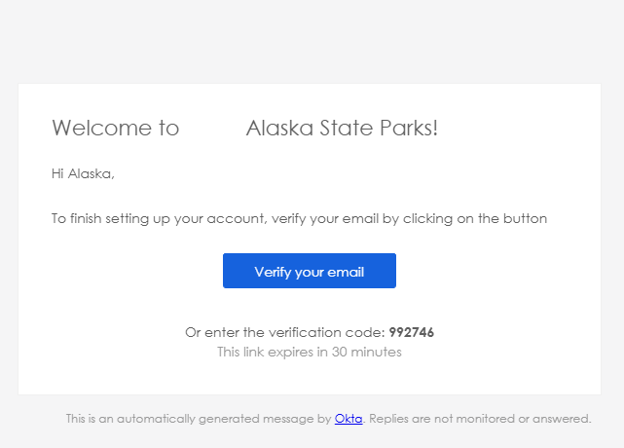
This will send you a verification e-mail to your e-mail address. Check your e-mail inbox and open the e-mail from, "noreply@okta.com," (be sure to check your Junk mail box if it doesn't show up in the next few minutes). Once you find the e-mail, open it and click the, "Verify your email," button.
This will send you back to the password setup page.
Step 6: Click the, "Set up," button.
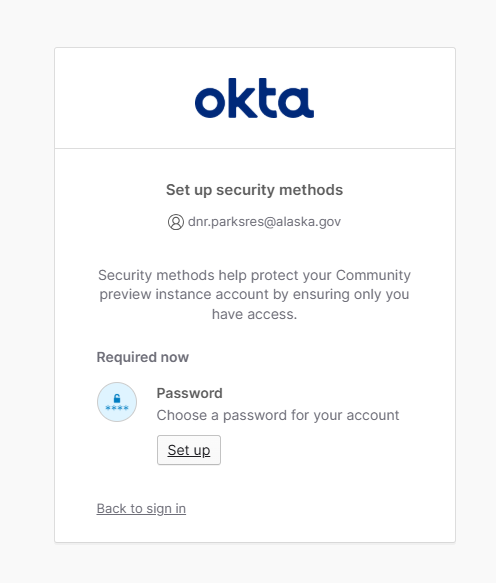
This will prompt you to create a new password and to verify the new password.
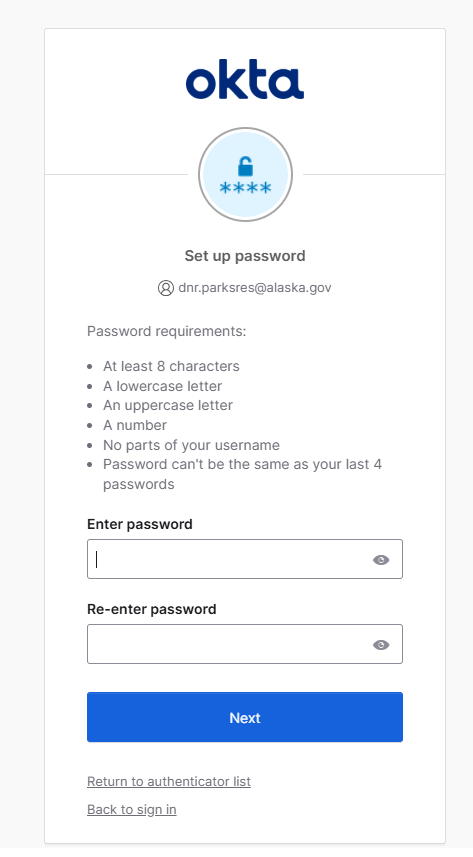
Enter and re-enter your new password, then click, "Next," and the system will immediately log you in and take you back to the Reservation System website.
At this point, your account setup is complete and you are ready to start making reservations in the new system!
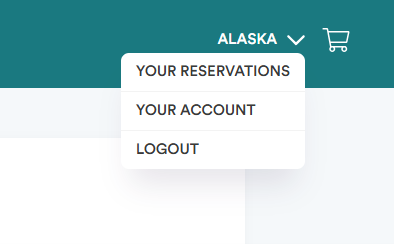
In the top-right corner of the Reservation System website, you'll find a dropdown menu under your name that will take you to your existing reservations, account information, and the logout button.